Software licenses can be activated electronically. We will send you an URL to activate your license online.
If your machine is not connectable to the internet, skip this section and proceed to the offline activation chapter.
Workstation Licenses
First of all, download and install KeepTool software on your workstation.
Then open the URL we sent you by email to open our WebDepot application.
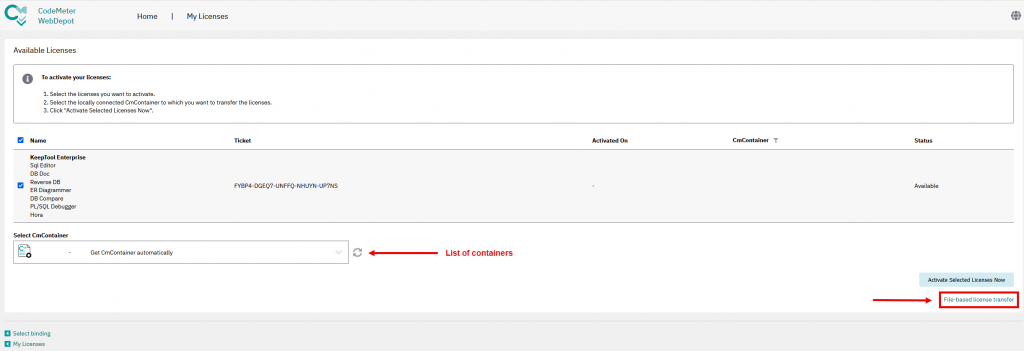
It displays your license represented by a ticked ID as passed by the URL.
Click the button “I would like to transfer my licenses to a computer” (CmActLicense) to show the following dialog:

Important note: When renewing maintenance, the container containing the basic license must be selected from the list box.
Click the “Activate Selected Licenses Now” button.
After a couple of seconds your software has been activated. You will get a confirmation like this:
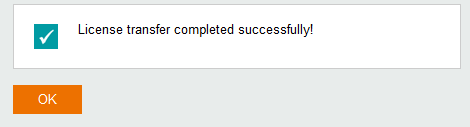
As of now, you can use the software on your workstation for an unlimited time.
You can reinstall our software or upgrade to a newer KeepTool version if it has been released prior to the expiration date of your maintenance period. Please contact us for a renewal of your update subscription.
Network Licenses
The activation of a network license is similar to the activation of a workstation license, except that it should be performed on the license server. First of all,
- Download and install the CodeMeter user runtime from Wibu.com.
It is available for Windows, MaxOS X, Linux and Solaris.
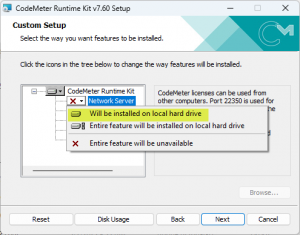
- During installation, please check in “Custom Setup” whether the server functionality is enabled. If not, please change the corresponding setting:
- Download and unzip an empty KeepTool license container file WibuCmLif
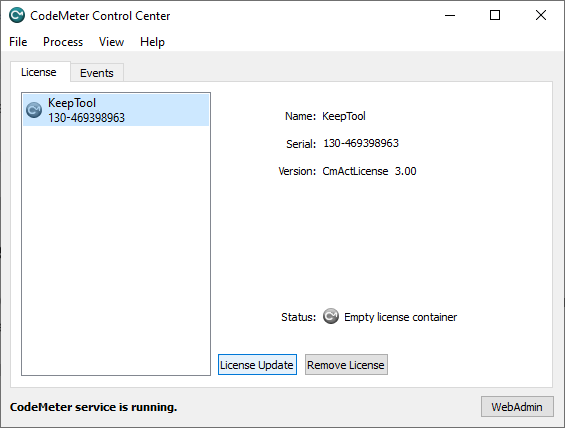
On Windows 10, drag-drop the downloaded file into the CodeMeter Control Center. For other operating systems, follow instructions provided by WIBU.
Open the URL we sent you by email to open our WebDepot application.
It displays your license represented by a ticked ID as passed by the URL.
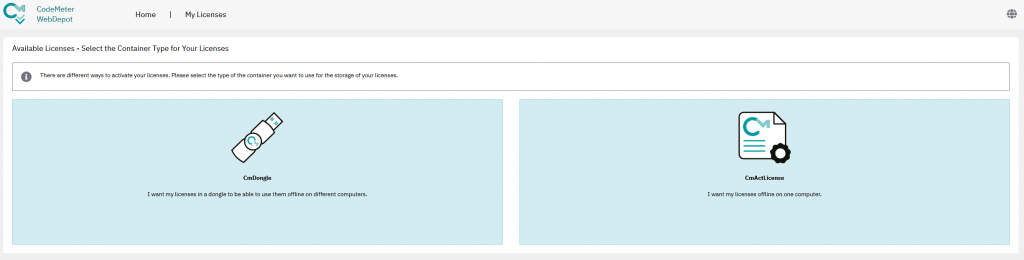
Then select container type. Choose CmActLicense, if you do not have a dongle:
In the next step your license appears. Click “Activate Selected Licenses Now”:
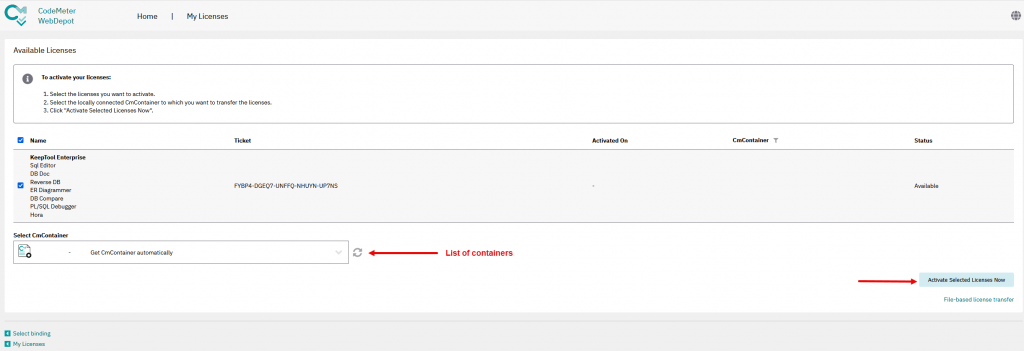
If there is no KeepTool container a new container will be created automatically. Otherwise you can select one of the existing KeepTool containers.
Important note: When renewing maintenance, the container containing the basic license must be selected from the list box.
Click the “Activate Selected Licenses Now” button. After a couple of seconds your software has been activated. You will get a confirmation like this:
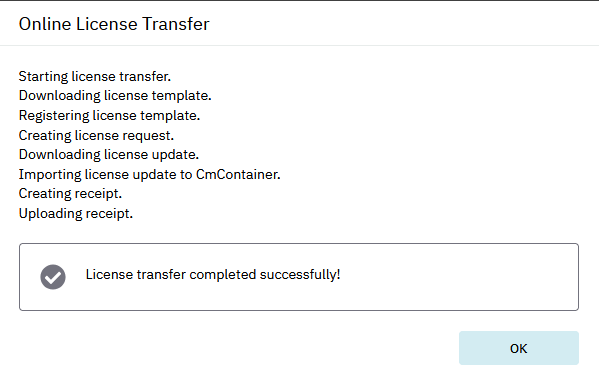
As of now, the license server has been activated.
To start the license server, open the local WebAdmin tool using the following URL:
http://localhost:22352/configuration/server_access.html
Proceed to Settings > Server Configuration > Server Access.
In the “Network Server” group, click the “Enable” option and confirm using the “Apply” button to start the server.
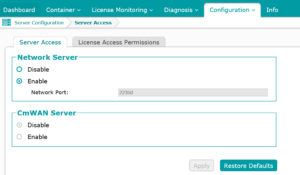
Now the license can be used by workstations within your network.
For subsequent license server software updates, you can uninstall the runtime software for later re-installation without worrying about your installed license container.
On the workstation, you can locally start WebAdmin using the same URL to either enable automatic license server search or enter your license server manually.